
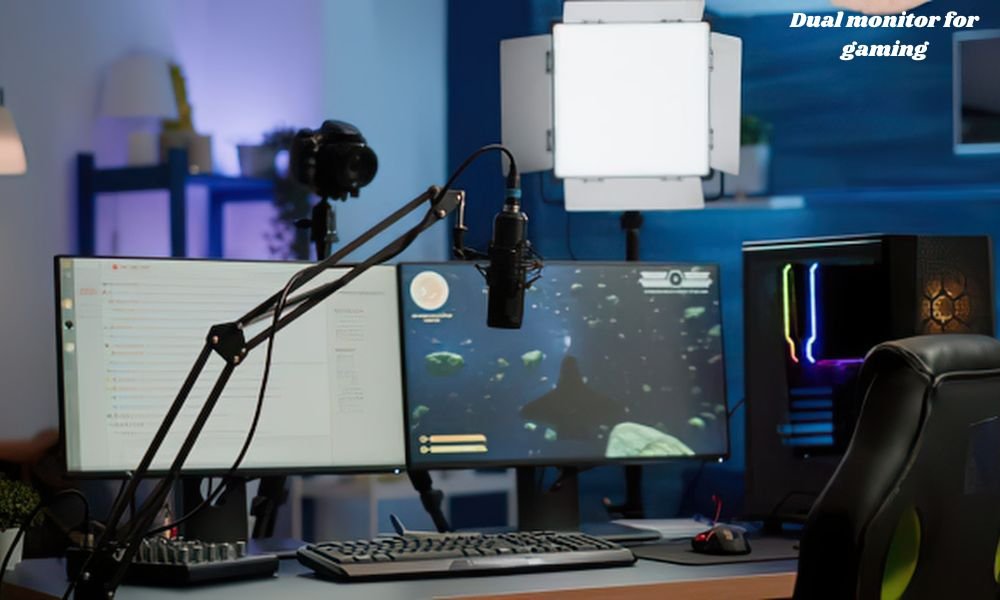
Setting up a dual monitor display for gaming is one of the most effective ways to upgrade your desktop experience. Whether you want to stream games while keeping an eye on chat, manage Discord without alt-tabbing, or simply multitask while waiting in game lobbies, adding a second screen transforms how you play and work.
Here is a complete, step-by-step guide to setting up a dual monitor rig cleanly and efficiently.
Plan Your Desk Space and Layout
Before plugging in cables, look at your physical setup.
- Desk Depth and Width: Measure your desk to ensure two screens fit comfortably without crowding your mouse space.
- Ergonomics: Place your primary gaming monitor directly in front of your natural eye line. The secondary monitor should sit slightly angled toward you on either the left or right side.
- Monitor Mounts vs. Stand: If desk space is tight, consider a dual-monitor arm (desk clamp or wall mount) to free up surface area beneath the screens.
Check GPU Ports and Cable Compatibility
Your graphics card (GPU) dictates what kind of displays you can run.
- Inspect Your Graphics Card: Look at the back of your PC tower. A standard modern GPU features a mix of DisplayPort (DP) and HDMI ports.
- Select the Best Cable for Gaming: * Use DisplayPort for your primary gaming monitor whenever possible. It supports higher refresh rates (144Hz, 240Hz, etc.) and adaptive sync technologies like G-Sync and FreeSync.
- Use HDMI or DisplayPort for your secondary monitor, where refresh rates are generally less critical.
- Avoid Motherboard Connections: Ensure both monitors connect directly to your dedicated GPU, not the motherboard ports near the USB slots (unless you are intentionally using integrated graphics).
Position and Mount Your Screens
Once your workspace is ready, physically position both screens.
- Primary Screen: Align it directly center-stage. This is where your full-screen games will run.
- Secondary Screen: Place it on your dominant side or whichever side has cleaner cable routes. Angle it inward by roughly 15 to 30 degrees for easy viewing without excessive neck strain.
- Cable Management: Thread power and display cables behind the desk or along monitor arms to keep the setup clutter-free.
Plug In and Power Up
Connect both monitors to power outlets and plug their display cables into your GPU. Turn on the screens, then boot up your PC. Windows usually detects the second monitor automatically, though it may initially mirror your primary desktop rather than extending it.
Configure Windows Display Settings
To make your two monitors behave like a cohesive desktop, configure your display settings in Windows:
- Right-click anywhere on your desktop and select Display settings.
- Under the Rearrange your displays section, click Identify to see which screen is assigned as Monitor 1 and Monitor 2.
- Click and drag the screen icons in the menu so their virtual positions match their physical locations on your desk.
- Scroll down to Multiple displays and select Extend these displays.
Set Your Primary Monitor and Refresh Rates
To ensure your games automatically launch on your best display:
- In Display settings, select the monitor meant for gaming.
- Scroll down and check the box marked Make this my main display.
- Click Advanced display settings for the gaming screen.
- Locate Choose a refresh rate and select the highest option your monitor supports (e.g., 144Hz, 165Hz, or 240Hz).
Fine-Tune GPU Control Panels (NVIDIA / AMD)
For granular control over colors, resolution, and adaptive sync technology, open your GPU’s control panel.
NVIDIA Control Panel
- Go to Display > Change resolution to verify high refresh rates and resolution.
- Go to Set up G-SYNC to enable adaptive sync for seamless gaming.
AMD Software: Adrenalin Edition
- Navigate to Gaming > Display to enable AMD FreeSync.
- Adjust color temperature or display scaling settings individually for each panel.
Calibrate Colors and Match Display Settings
If your two monitors are different models or brands, the colors, brightness, and contrast will likely look different.
- Use Physical OSD Buttons: Access the built-in menus on both monitors to balance brightness and contrast levels.
- Match Color Temperature: Set both displays to the same preset (such as “Warm” or “User/Custom”) to prevent eye fatigue when switching glances between screens.
Choose the Right In-Game Display Mode
How your games run can impact how easy it is to use your second screen while playing.
| Game Display Mode | Pros | Cons |
| Exclusive Fullscreen | Best performance, lowest input lag | Screen flickers or minimizes when clicking onto the second monitor |
| Borderless Windowed | Seamless mouse movement to second monitor without tab delays | Slight, often unnoticeable hit to FPS depending on system hardware |
| Windowed | Easy to resize | Visible window borders, immersion loss |
Recommendation: Use Borderless Windowed mode for casual or multitasking-heavy games, and Exclusive Fullscreen for competitive games where every millisecond of input latency counts.
Useful Software for Dual-Monitor Gamers
Managing two screens gets much easier with the right software tools:
- DisplayFusion: Offers advanced taskbar customization, monitor profiles, and wallpaper management across multiple screens.
- Borderless Gaming: Forces older games that lack a native borderless option to run cleanly without borders.
- PowerToys (FancyZones): A Microsoft utility that allows you to create custom grid layouts for snapping windows on your secondary display.
Troubleshooting Common Dual-Monitor Issues
- Cursor Drifts to Second Monitor During Gameplay: Ensure your game is set to Fullscreen, or use tools like Cursor Lock to keep the mouse bound to the active screen.
- FPS Drops or Stuttering: Running intensive video software on the secondary screen while gaming can occasionally cause frame dips. Disabling hardware acceleration in web browsers or Discord often resolves this.
- Screen Wakes Up with Misaligned Windows: Make sure both display cables are plugged securely into the GPU and that Windows display scale settings match across both panels if possible.
Final Thoughts
Setting up a dual monitor array for gaming strikes a great balance between functionality and immersion. Once physical positioning, Windows settings, and refresh rates are properly configured, having extra screen real estate makes managing background tasks, communication apps, and content creation seamless. With a clean layout and simple display tweaks, a multi-monitor rig becomes an indispensable part of any modern desktop experience.