
Gaming monitor setup ideas A great display means very little if it sits on a cluttered, uncomfortable desk. Setting up your screen properly is about more than just plugging in a cable; it directly affects your posture, focus, and overall experience. Whether you want to climb ranked ladders or sink into massive open worlds, having an organized, comfortable space makes a noticeable difference. Designing an effective layout requires balancing panel specs, mounting options, lighting, and cable control. Here is a practical guide to building a clean, high-performance display layout that fits your space and playstyle. Choosing the Right Monitor Foundation Before mounting or decorating, make sure your primary display matches the games you actually play. Esports & Fast Shooters: A 24-to-27-inch 1080p or 1440p panel with high refresh rates ($144\text{ Hz}$ to $240\text{ Hz}$) keeps action crisp without forcing your eyes to track across a huge surface. Immersive & RPG Gaming: A 32-inch 4K screen or a 34-inch ultrawide offers deep contrast and rich detail, pulling you right into the game world. Minimalist Single-Monitor Clean Build If you like a distraction-free space, a single-screen layout focused on clean lines works best. Keep your desktop clear by mounting the display on an adjustable gas-spring arm. Place your PC tower on a dedicated floor stand or a side shelf to maximize desk surface. Use a extended desk pad to tie your keyboard, mouse, and display base together visually. Dual-Monitor Layout for Streamers and Multitaskers Running two displays is standard for anyone who streams, chats on Discord, or manages background apps while gaming. Primary Screen: Position your main display directly in front of you at eye level. Secondary Screen: Angle your second panel slightly inward ($15^\circ$ to $30^\circ$) on your non-dominant side to reduce neck strain. Vertical Orientation: Turn your second display sideways (portrait mode) if you read long chat feeds, code, or keep documents open. Immersive Ultrawide and Super-Ultrawide Layouts Ultrawide ($21:9$) and super-ultrawide ($32:9$) screens give you expansive field-of-view without the center bezels that come with multi-screen builds. Tip: Due to their extra weight, standard factory stands take up significant desk depth. Use a heavy-duty, high-capacity monitor arm to lift the screen and free up space beneath it. Vertical Stacked Monitor Layout When horizontal desk space is limited, stacking displays vertically is an efficient alternative. Mount the main screen at direct eye level. Tilt the upper screen downward slightly so you can view it comfortably without leaning back. This layout works exceptionally well for flight simulators, racing rigs, and compact desk areas. Ergonomics: Finding the Right Angle and Height Proper physical alignment prevents neck and eye strain during long gaming sessions. Eye Line: The top third of your display should line up with your natural eye level when sitting up straight. Distance: Keep the screen roughly an arm’s length away (around 20 to 30 inches). Tilt: Angle the screen back slightly ($10^\circ$ to $20^\circ$) to match your natural line of sight. Cable Management Solutions Tangled wires quickly spoil the look of any setup. Hiding cords takes a little effort upfront, but it keeps your workspace tidy. Run display and power cables inside the built-in channels of your monitor arm. Mount a wire basket or raceway under your desk to hold power strips and power bricks. Bundle loose cords together using reusable fabric straps or spiral sleeves. Bias Lighting and Ambient RGB Integration Bright screens in dark rooms can strain your eyes. Adding balanced background lighting creates a comfortable contrast level. Attach neutral white ($6500\text{K}$) LED light strips directly behind your display to project soft light onto the wall. Sync smart ambient lighting to your screen colors for dynamic background glow during gameplay. Avoid placing strong light sources directly behind your chair to prevent screen glare. Mounting Solutions: Desk Clamp vs. Wall Mount Deciding how to support your displays comes down to your room layout and desk material. Mount Type Best Used For Key Advantage Desk Clamp Arm Standard wood or metal desks Easy to reposition and move later Wall Mount Shallow desks or ultra-heavy displays Frees up $100\%$ of desk surface Grommet Mount Desks with pre-drilled cable holes Maximum stability for heavy setups Audio and Accessories Placement Keep your sound equipment accessible without cluttering your main viewing area. Mount desktop speakers on small elevated stands so the tweeters point toward ear level. Use an under-desk hook or a side stand to hang your headset when it is not in use. Place your microphone on an adjustable boom arm clamped to the side of the desk rather than right in front of the screen. Setting Display Refresh Rates and Resolution Plugging in a high-refresh display does not always mean it runs at top performance automatically. Open your operating system’s Display Settings. Go to Advanced Display and manually select the maximum refresh rate available (e.g., $144\text{ Hz}$ or $240\text{ Hz}$). Enable Variable Refresh Rate features like G-Sync or FreeSync in your GPU control panel to eliminate screen tearing. Final Thoughts Building the ideal gaming monitor setup is an ongoing process of tweaking comfort, aesthetics, and performance. Start by getting your primary display positioned correctly for your posture, secure your cables out of sight, and layer in ambient lighting to reduce eye fatigue. When your display layout is comfortable and organized, you can focus entirely on enjoying your games.

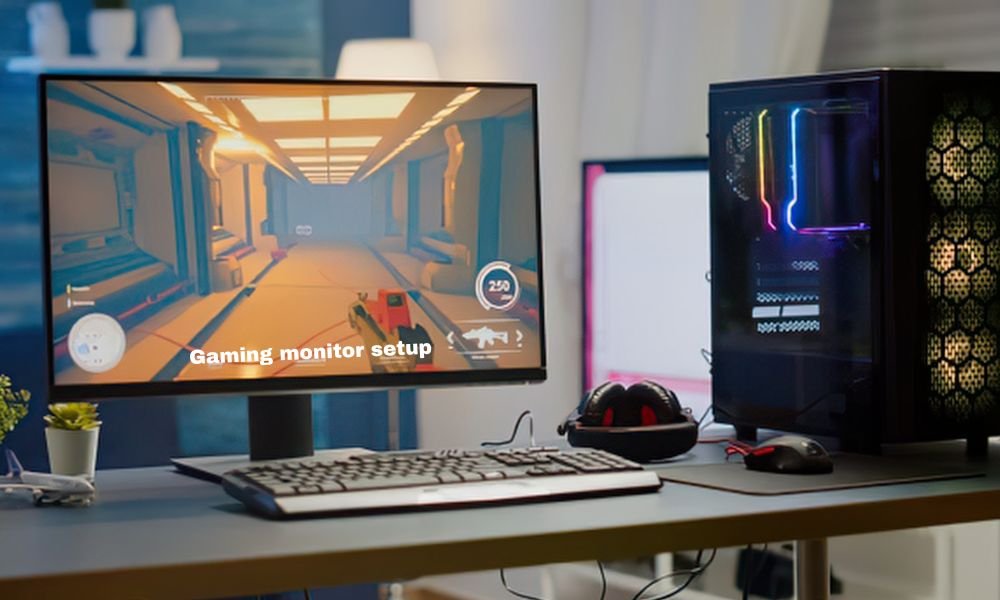
Gaming monitor setup ideas

A great display means very little if it sits on a cluttered, uncomfortable desk. Setting up your screen properly is about more than just plugging in a cable; it directly affects your posture, focus, and overall experience. Whether you want to climb ranked ladders or sink into massive open worlds, having an organized, comfortable space makes a noticeable difference.

Designing an effective layout requires balancing panel specs, mounting options, lighting, and cable control. Here is a practical guide to building a clean, high-performance display layout that fits your space and playstyle.

Choosing the Right Monitor Foundation

Before mounting or decorating, make sure your primary display matches the games you actually play.

  • Esports & Fast Shooters: A 24-to-27-inch 1080p or 1440p panel with high refresh rates ($144\text{ Hz}$ to $240\text{ Hz}$) keeps action crisp without forcing your eyes to track across a huge surface.
  • Immersive & RPG Gaming: A 32-inch 4K screen or a 34-inch ultrawide offers deep contrast and rich detail, pulling you right into the game world.

Minimalist Single-Monitor Clean Build

If you like a distraction-free space, a single-screen layout focused on clean lines works best.

  • Keep your desktop clear by mounting the display on an adjustable gas-spring arm.
  • Place your PC tower on a dedicated floor stand or a side shelf to maximize desk surface.
  • Use a extended desk pad to tie your keyboard, mouse, and display base together visually.

Dual-Monitor Layout for Streamers and Multitaskers

Running two displays is standard for anyone who streams, chats on Discord, or manages background apps while gaming.

  • Primary Screen: Position your main display directly in front of you at eye level.
  • Secondary Screen: Angle your second panel slightly inward ($15^\circ$ to $30^\circ$) on your non-dominant side to reduce neck strain.
  • Vertical Orientation: Turn your second display sideways (portrait mode) if you read long chat feeds, code, or keep documents open.

Immersive Ultrawide and Super-Ultrawide Layouts

Ultrawide ($21:9$) and super-ultrawide ($32:9$) screens give you expansive field-of-view without the center bezels that come with multi-screen builds.

Tip: Due to their extra weight, standard factory stands take up significant desk depth. Use a heavy-duty, high-capacity monitor arm to lift the screen and free up space beneath it.

Vertical Stacked Monitor Layout

When horizontal desk space is limited, stacking displays vertically is an efficient alternative.

  • Mount the main screen at direct eye level.
  • Tilt the upper screen downward slightly so you can view it comfortably without leaning back.
  • This layout works exceptionally well for flight simulators, racing rigs, and compact desk areas.

Ergonomics: Finding the Right Angle and Height

Proper physical alignment prevents neck and eye strain during long gaming sessions.

  • Eye Line: The top third of your display should line up with your natural eye level when sitting up straight.
  • Distance: Keep the screen roughly an arm’s length away (around 20 to 30 inches).
  • Tilt: Angle the screen back slightly ($10^\circ$ to $20^\circ$) to match your natural line of sight.

Cable Management Solutions

Tangled wires quickly spoil the look of any setup. Hiding cords takes a little effort upfront, but it keeps your workspace tidy.

  • Run display and power cables inside the built-in channels of your monitor arm.
  • Mount a wire basket or raceway under your desk to hold power strips and power bricks.
  • Bundle loose cords together using reusable fabric straps or spiral sleeves.

Bias Lighting and Ambient RGB Integration

Bright screens in dark rooms can strain your eyes. Adding balanced background lighting creates a comfortable contrast level.

  • Attach neutral white ($6500\text{K}$) LED light strips directly behind your display to project soft light onto the wall.
  • Sync smart ambient lighting to your screen colors for dynamic background glow during gameplay.
  • Avoid placing strong light sources directly behind your chair to prevent screen glare.

Mounting Solutions: Desk Clamp vs. Wall Mount

Deciding how to support your displays comes down to your room layout and desk material.

Mount TypeBest Used ForKey Advantage
Desk Clamp ArmStandard wood or metal desksEasy to reposition and move later
Wall MountShallow desks or ultra-heavy displaysFrees up $100\%$ of desk surface
Grommet MountDesks with pre-drilled cable holesMaximum stability for heavy setups

Audio and Accessories Placement

Keep your sound equipment accessible without cluttering your main viewing area.

  • Mount desktop speakers on small elevated stands so the tweeters point toward ear level.
  • Use an under-desk hook or a side stand to hang your headset when it is not in use.
  • Place your microphone on an adjustable boom arm clamped to the side of the desk rather than right in front of the screen.

Setting Display Refresh Rates and Resolution

Plugging in a high-refresh display does not always mean it runs at top performance automatically.

  1. Open your operating system’s Display Settings.
  2. Go to Advanced Display and manually select the maximum refresh rate available (e.g., $144\text{ Hz}$ or $240\text{ Hz}$).
  3. Enable Variable Refresh Rate features like G-Sync or FreeSync in your GPU control panel to eliminate screen tearing.

Final Thoughts

Building the ideal gaming monitor setup is an ongoing process of tweaking comfort, aesthetics, and performance. Start by getting your primary display positioned correctly for your posture, secure your cables out of sight, and layer in ambient lighting to reduce eye fatigue. When your display layout is comfortable and organized, you can focus entirely on enjoying your games.

Leave a Comment

Your email address will not be published. Required fields are marked *

Scroll to Top